




Column suggestions
Find columns as you type. Format your SQL and run the current statement with Ctrl+Enter.
Oracle Fusion · BI Publisher
Look up tables, write SQL through BI Publisher, and filter, compare, or export your results.
Free · RC28 · Windows x64 · ZIP, EXE and MSI
SCHEMA REFERENCE
Look up columns without leaving the editor.
Browse table descriptions, inspect relationships, and open the Oracle documentation to check a column or join.

SQL and schema reference Look up tables alongside your query.
FROM QUERY TO RESULTS
Illustrated workflow · sample data
SQL EDITOR
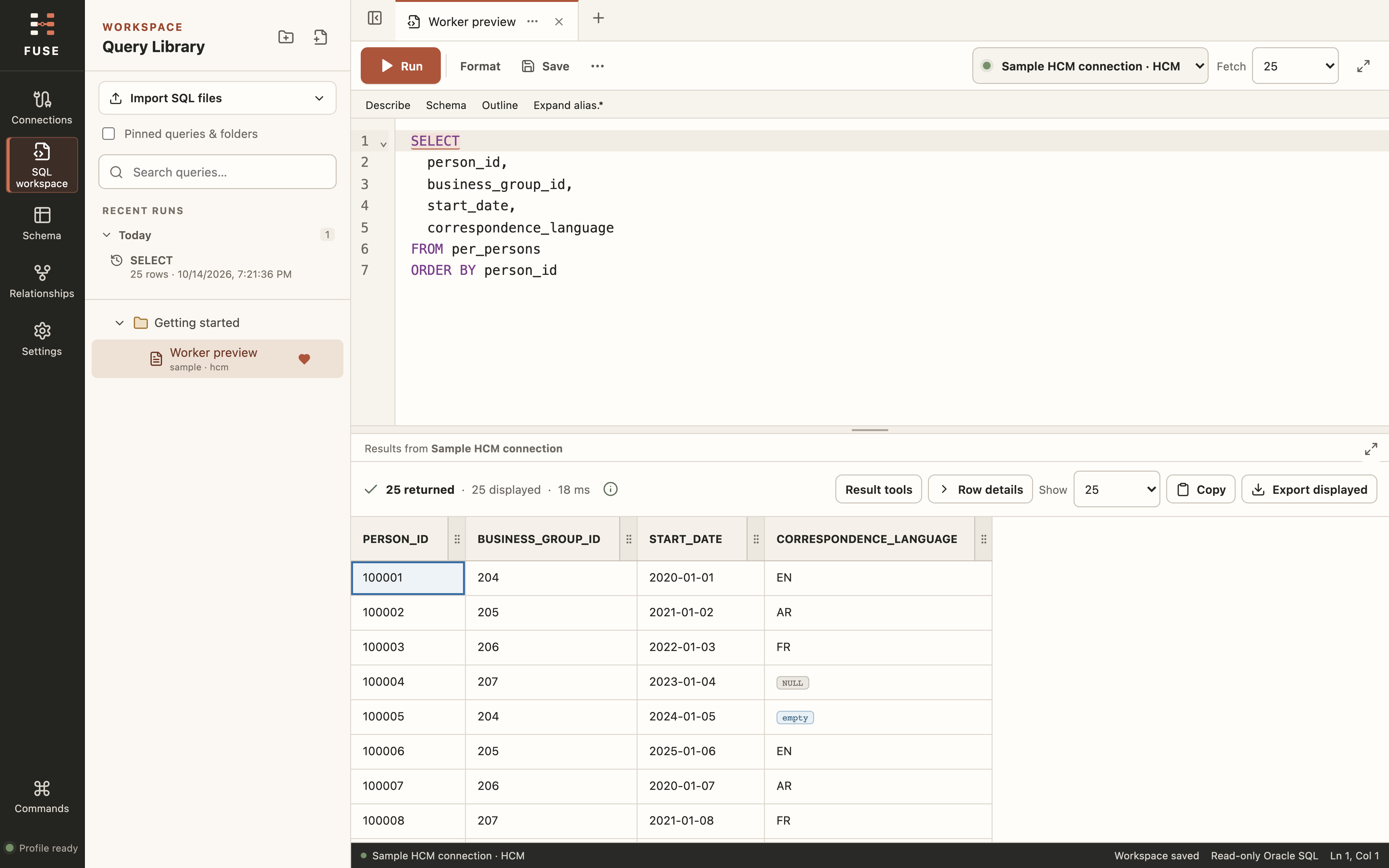
Open a draft, type a table alias, and see its column suggestions beside your query.
SQL editor · table and column suggestionsSCHEMA EXPLORER
Search Fusion tables, read column descriptions, and open the matching Oracle documentation.
HCM · Financials · Common · Procurement · Supply ChainRELATIONSHIP REVIEW
Trace table relationships and check their sources or review notes before using them in your query.
Documented links · review notesRESULTS
See how many rows were returned and displayed. Review the grid, then export the displayed rows.
CSV · XLSX · JSONTHE WORKBENCH
The editor, query library, and results are available in the same window.
Find columns as you type. Format your SQL and run the current statement with Ctrl+Enter.
Keep queries in folders, save SQL files where you choose, and import existing work without changing the originals.
Filter and compare results, resize columns, and export to CSV, Excel, or JSON. Oracle date and timestamp values stay unchanged.
RELATIONSHIPS
Follow the links between people, assignments, jobs, and organizations. Check the source or review notes before using a join in your SQL.
Unverified matches stay separate. They are not automatically used to connect other tables.
 Table relationships · illustration
PRINCIPLES
FUSE works through BI Publisher, using the Oracle Fusion permissions you already have.
FUSE blocks direct data-changing SQL. Custom functions can still have side effects. Use least-privileged access in an authorised non-production environment.
Windows protects saved passwords for your account. Other workspace data and SQL files are not encrypted by FUSE.
FUSE sends queries through Oracle Fusion BI Publisher. It does not give you access beyond your existing permissions.
FUSE does not send usage analytics. It contacts your tenant only when you choose to prepare, test, or run.
WORKSPACE SETTINGS
Resize panels, adjust display settings, and use keyboard shortcuts.
Run the cursor statement with Ctrl+Enter, save queries, search, navigate results, and open commands from the keyboard.
Resize panels and result columns. Collapse local history by day, week or month when you need more space.
Distinguish null values from empty cells, see when results are limited, and read errors beside your query.
Use visible keyboard focus and reduce animation to suit your preferences.
FUSE FOR WINDOWS
Get FUSE from the Microsoft Store, or use the portable ZIP. Standalone installers and older versions are also available.
Free · RC28 · Windows x64 · ZIP, EXE and MSI
FAQ
No. FUSE works through Oracle Fusion BI Publisher services and the access already granted to your user.
FUSE accepts one SELECT or WITH statement and blocks direct data-changing SQL. Custom functions can still have side effects under your Oracle permissions. Use least-privileged access in an authorised non-production environment.
Connection setup can create missing BI Publisher report objects. Get your environment owner's permission first.
The schema catalog covers HCM, Financials, Common, Procurement, and Supply Chain. Connection presets are available for HCM and Financials / SCM. Your Oracle permissions determine which data you can access.
Check the linked Oracle documentation before using a column or join. Catalog coverage varies, and missing information is marked in the app.
Yes. FUSE is free for Windows. Get it from the Microsoft Store or download the portable ZIP. Standalone installers and older versions are also available.
Add your Fusion connection and choose Save & test. New HCM and Financials / SCM connections use the included V3 model. Existing models are not overwritten.
FUSE accepts up to 1 MiB of SQL text; your Oracle environment may allow less. See connection setup.
Yes. Your workspace is stored in your Windows user profile. Save also writes a SQL file to your chosen folder.
Before closing, wait for Workspace saved, close the app window, then the console. To update, extract into a new folder and keep your existing workspace and SQL files. Run one portable version at a time.
Yes. Connect Codex or Claude through Settings > Coding tools. The companion provides schema context, and you approve each query request inside FUSE.
Result sharing is off by default. Optional samples require your permission and may reach your coding tool's provider without automatic redaction. Your coding tool's separate file permissions still apply. Read the privacy notice.
Created by
Design and development